Manual Rev.: 1.0
Revision Date: September, 2023
Part Number: 50M-000xx-1010
Preface
Copyright
Copyright © 2023 ADLINK Technology, Inc. This document contains proprietary information protected by copyright. All rights are reserved. No part of this manual may be reproduced by any mechanical, electronic, or other means in any form without prior written permission of the manufacturer.
Disclaimer
The information in this document is subject to change without prior notice in order to improve reliability, design, and function and does not represent a commitment on the part of the manufacturer. In no event will the manufacturer be liable for direct, indirect, special, incidental, or consequential damages arising out of the use or inability to use the product or documentation, even if advised of the possibility of such damages.
Trademarks
Product names mentioned herein are used for identification purposes only and may be trademarks and/or registered trademarks of their respective companies.
Revision History
| Revision | Description | Date |
|---|---|---|
| 1.0 | Support EVA SDK R4,0 with Jetpack 4.0 on Ubuntu 20.04
Support Euresys Gige Vision Camera |
2023-09-xx |
¶ 1 Introduction
This chapter describes the installation of the following software.
- Gstreamer RTSP Plugin and Gstreamer Python Plugin
- Hikrobot software
- FLIR software
- ADLINK EVA SDK
The following table lists the specified software versions.
| Item | Version |
|---|---|
| OS | Ubuntu 20.04 LTS AArch64 |
| GStreamer | 1.16.3 |
| NVIDIA® JetPack | 5.0.2 |
| Python | 3.8 |
| pylon | 7.2.1 |
| Hikrobot MVS | 2.1.2 |
| Flir Spinnaker SDK | 3.0.0.118 |
| Euresys Open eVision Libraries | 22.12.0.14750 |
| Euresys Open eVision cuda redist | 22.12.0.14750 |
| Euresys eGrabber & Memento | 23.02.0.68 |
NVIDIA® JetPack includes the following software versions.
| Item | Version |
|---|---|
| NVIDIA® DeepStream | 6.1 |
| NVIDIA® CUDA | 11.4 |
| NVIDIA® TensorRT | 8.4.1 |
| NVIDIA® cuDNN | 8.4.1 |
| OpenCV | 4.2 |
The following table lists the estimated required installation space when installing the software under Ubuntu 18.04 aarch64. The required installation space includes the install file (.deb, .run) package size.
| Software | Required Installation Space |
|---|---|
| GStreamer Python Plugin | 200MB |
| Hikrobot MVS | 146MB (zip file: 539MB) |
| Flir Spinnaker SDK | 113MB (gz file: 50MB) |
| Euresys Open eVision Library | 0.8GB (gz file: 309MB) |
| Euresys Open eVision cuda redist | 1.2GB (gz file: 303MB) |
| Euresys eGrabber | 1.9GB (gz file: 327MB) |
| Euresys Memento | 1GB (gz file: 18MB) |
For more details about ADLINK EVA, refer to https://eva-support.adlinktech.com.
¶ 2 Installing the GStreamer RTSP Plugin
¶ 2.1 Install RTSP plugin for GStreamer (Optional)
If data will be sent over via an RTSP server, the system must have the RTSP plugin for GStreaming installed. Use the following command to install the RTSP plugin.
| sudo apt install gstreamer1.0-rtsp |
Use the following command to verify that the plugin has been installed.
| $ gst-inspect-1.0 rtspclientsink |

¶ 3 Installing the GStreamer Python Plugin
GStreamer is built on the GLib and GObject portable libraries which are compatible with Python. Gstreamer can be used in two ways: by writing GStreamer applications, or by writing GStreamer Python elements that can be scanned by the GStreamer Python plugin loader and registered as a plugin in GObject. The following sections describe how to install the GStreamer Python plugin.
¶ 3.1 Install the Required Packages
| $ sudo apt-get update
$ sudo apt-get install python3-pip python-gi-dev python3-gst-1.0 |
If your platform is using Python 2.7, change the python3-gst-1.0 package to python-gst-1.0.
¶ 3.2 Install the GStreamer Python Plugin Loader
| $ sudo apt-get install -y gstreamer1.0-python3-plugin-loader |
Check for installed Python plugins
| $ GST_DEBUG=pyplugin:7 gst-inspect-1.0 python |
If the Python plugins are found, the installation has been successful.
¶ 4 Installing Hikrobot Software (Optional)
If you are not using a Hikrobot camera, this chapter can be skipped.
¶ 4.1 Uninstall Non-specified Version
If the system has a non-specified version of the Pylon software, uninstall it.
If the installer is installed via deb, refer to the following command to remove it.
| $ sudo apt-get remove mvs |
¶ 4.2 Install Hikrobot Software
If Hikrobot cameras are used, the Hikrobot MVS Software must be installed.
Download Machine Vision Software MVS2.1.2(Linux) from: https://www.hikrobotics.com/en/machinevision/service/download?module=0

Run the following commands to install.
| $ unzip -d MVS_STD MVS_STD_GML_V2.1.2_221208.zip -x *x86* *arm* *i386*
$ cd MVS_STD $ sudo dpkg -i MVS-2.1.2_aarch64_20221208.deb |
After installation, connect the camera and run the MVS software to verify that it works. The file should be at /opt/MVS/bin.
Note:
The above installation steps are for reference only. For more specific installation instructions, refer to the official documentation, or contact Hikrobot at https://en.hikrobotics.com/contactus.
¶ 5 Installing FLIR Software (Optional)
This chapter covers the installation of required software for use with FLIR cameras.
If you are not using a FLIR camera, this chapter can be skipped.
¶ 5.1 Uninstall Non-specified Version
If the system has a non-specified version of the FLIR Spinnaker software, run the uninstall script under the Spinnaker installation package to remove it.
| $ cd spinnaker-<version>
$ sudo ./remove_spinnaker_arm.sh |
¶ 5.2 Install FLIR Spinnaker Software
If FLIR cameras are used, the FLIR Spinnaker Software Suite for Windows must be installed.
Download the FLIR Spinnaker installer from: https://www.flir.asia/products/spinnaker-sdk/
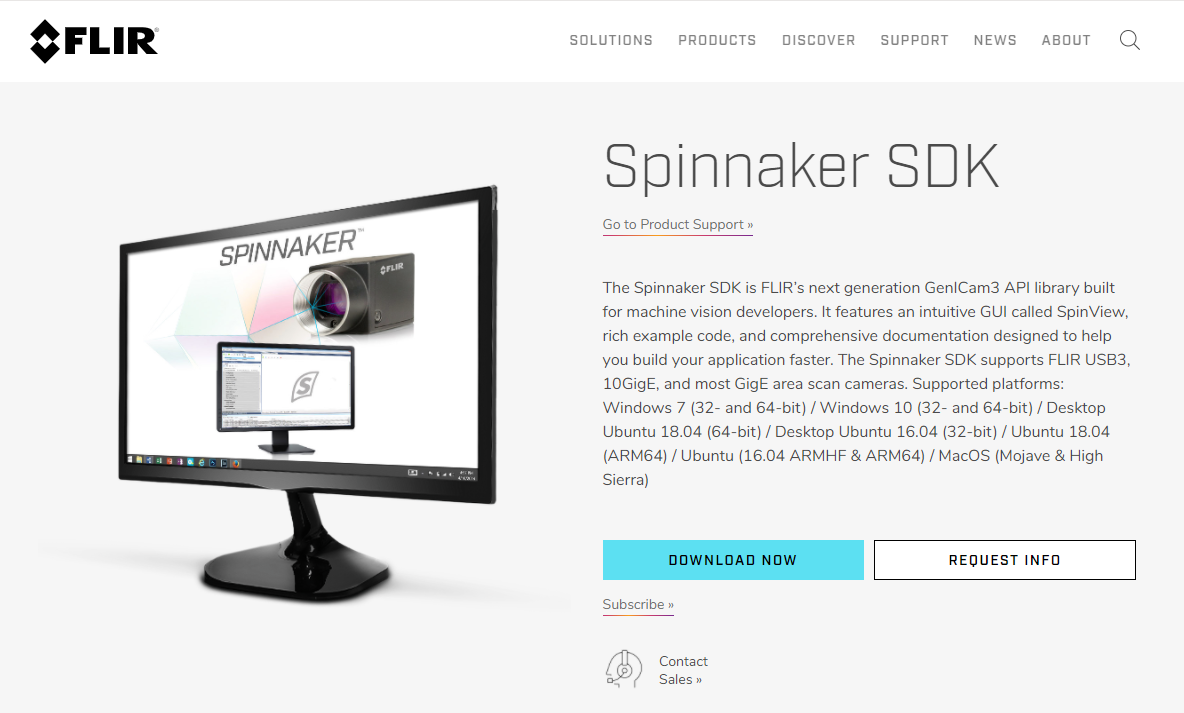
The recommended software versions are:
- Version: 3.0.0.118
- Operating System: Linux 64-bit
Run the following commands and then follow the on-screen instructions to complete the installation.
| $ tar xvfz spinnaker-3.0.0.118*arm64-pkg.tar.gz
$ cd spinnaker-3.0.0.118-arm64 $ sudo ./install_spinnaker_arm.sh $ sudo reboot |
Note:
During installation, you MUST enter a username to add a new member.
For example, enter ‘adlink’ for the user name.
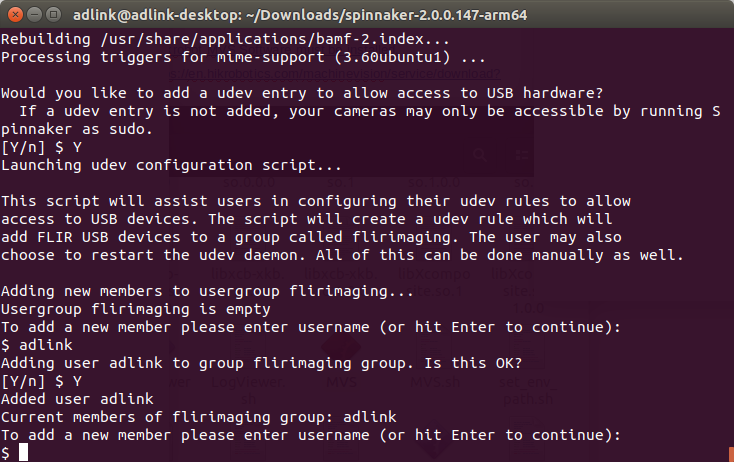
After installing, insert the camera device and run the following command to verify.
| $ spinview |
Note:
For more information, refer to https://www.flir.com/support-center/iis/machine-vision/application-note/using-spinnaker-on-arm-and-embedded-systems/
If you have any questions, go to https://www.flir.com/.
¶ 6 Installing ONNX Runtime
This chapter covers the installation of required software for use with the ONNX Runtime inference engine.
Download ONNX Runtime v1.12.1 for python 3.8 from https://elinux.org/Jetson_Zoo#ONNX_Runtime
Run the following commands to install ONNX Runtime.
| $ pip3 install --upgrade pip cython protobuf
$ pip3 install numpy==1.19.4 pillow $ cd Downloads $ pip3 install onnxruntime_gpu-1.12.1-cp38-cp38-linux_aarch64.whl |
¶ 7 Installing Process for Euresys Solution (Optional)
This chapter covers the installation of required software for using Euresys Gige Vision Cameras.
If you are not using Euresys solution, this chapter can be skipped.
If you would like to use Euresys, contact your regional distributor to get the Euresys licenses. https://www.euresys.com/en/Products/Accessory/Neo-USB-Dongle-(empty)
¶ 7.1 Installing Gige Vision Camera
If Gige vision cameras are used, the Memento and eGrabber software must be installed.
The recommended software versions are:
- Version: 23.02.0.68
- Operating System: Linux 20.04, 64 bit
Download Memento and eGrabber from https://www.euresys.com/en/Support/Software,-drivers-and-documentation?series=105d06c5-6ad9-42ff-b7ce-622585ce607f&os=Linux&packages=20d16334-0c64-45e0-8ba0-0d099597937f:23.02;e55e4c47-ed00-45cf-bc7e-ebd6fb2e4c23:23.02
Run the following commands to install.
| $ tar xvfz memento-linux-aarch64-23.02.0.71.tar.gz
$ cd memento-linux-aarch64-23.02.0.71 $ sudo ./install.sh $ cd .. $ tar xvfz egrabber-linux-aarch64-23.02.0.71.tar.gz $ cd egrabber-linux-aarch64-23.02.0.71 $ sudo ./install.sh $ . /opt/euresys/egrabber/shell/setup_gentl_paths.sh $ . /opt/euresys/egrabber/shell/select-gigelink-producer.sh |
For more details, refer to memento-linux-x86_64-22.10.1.45/INSTALL and egrabber-linux-x86_64-22.10.1.45/INSTALL.
Before using the Euresys eGrabber driver, you must set the following environment variables.
| $ . /opt/euresys/egrabber/shell/setup_gentl_paths.sh
$ . /opt/euresys/egrabber/shell/select-gigelink-producer.sh |
Optional: The environment variables are removed when you close the terminal. As an option, you can permanently set the environment variables as follows:
- Open the
.bashrcfile$ gedit ~/.bashrc$ gedit ~/.bashrc - Add this line to the end of the file
. /opt/euresys/egrabber/shell/setup_gentl_paths.sh
. /opt/euresys/egrabber/shell/select-gigelink-producer.sh
After installation, connect the camera and run the following command to verify that it works.
| $ studio |
¶ 8 Installing the ADLINK EVA SDK
¶ 8.1 Remove Previous ADLINK EVA SDK Versions
If you have a previously installed version of the ADLINK EVA SDK, remove it with the following command:
| $ sudo /opt/adlink/eva/uninstall.sh |
If the install path has been changed, specified the correct path with:
| $ sudo [INSTALL_DIR]/uninstall.sh |
INSTALL_DIR enters the specified path.
Note: When uninstalling the ADLINK EVA SDK, the folder specified with INSTALL_DIR will be deleted.
¶ 8.2 Run the Required Commands for EVA IDE
| $ sudo ln -snf /usr/share/fonts/truetype/dejavu /lib/fonts
$ sudo apt-get install graphviz xclip libopencv-python $ pip3 install pika==1.3.1 onnx==1.10.0 boto3 $ sudo systemctl stop nvargus-daemon $ sudo systemctl disable nvargus-daemon |
¶ 8.3 Download and Install the ADLINK EVA SDK
Download the ADLINK EVA SDK installation package and copy it to your Linux Ubuntu 18.04 aarch64 system.
Change mode and run install package
| $ chmod +x EVA_SERP_xxxx.run
$ sudo ./EVA_SERP_xxxx.run |
xxxx is the version and the install path is /opt/adlink/eva.
Select the EVA SDK plugins to be installed.
Select GStreamer plugin to install. (Separate with comma, for example, “2,3,4”).
|
For example, to install the TensorRT inference plugin and the Pylon plugin, enter 3,4. To install all plugins, including the TensorRT inference plugin, the Pylon plugin, the Hik plugin, and the Flir plugin, enter 1.
Notes:
- TensorRT is only supported on NVIDIA platforms.
- Before installing the EVA SDK, you must ensure the corresponding software packages have been installed. If the plugins are installed but there are no corresponding libraries, when the GStreamer command runs for the first time, it will display messages to warn that the related libraries are missing, and the installed plugins will not work.
Other commands can be used to install the ADLINK EVA SDK.
- Use the -s command option to install all the plugins in silent mode. The install path is /opt/adlink/eva.
$ sudo ./EVA_SERP_xxxx.run -- -s$ sudo ./EVA_SERP_xxxx.run -- -s
¶ 8.4 Set Environment Variables
Set environment variables for the ADLINK EVA SDK
| $ source /opt/adlink/eva/scripts/setup_eva_envs.sh |
The script will set up the environment variables of the following installed software.
- Pylon
- ADLINK EVA SDK
If the software has no corresponding libraries, the script will not set up the corresponding environment variables.
Note:
The environment variables are removed when closing the command prompt or terminal.
¶ Safety Instructions
Read and follow all instructions marked on the product and in the documentation before you operate your system. Retain all safety and operating instructions for future use.
- Please read these safety instructions carefully.
- Please keep this User‘s Manual for later reference.
- Read the specifications section of this manual for detailed information on the operating environment of this equipment.
- When installing/mounting or uninstalling/removing equipment, turn off the power and unplug any power cords/cables.
- To avoid electrical shock and/or damage to equipment:
- Keep equipment away from water or liquid sources.
- Keep equipment away from high heat or high humidity.
- Keep equipment properly ventilated (do not block or cover ventilation openings).
- Make sure to use recommended voltage and power source settings.
- Always install and operate equipment near an easily accessible electrical socket-outlet.
- Secure the power cord (do not place any object on/over the power cord).
- Only install/attach and operate equipment on stable surfaces and/or recommended mountings.
- If the equipment will not be used for long periods of time, turn off and unplug the equipment from its power source.
- Never attempt to fix the equipment. Equipment should only be serviced by qualified personnel.
Please visit the Contact page at www.adlinktech.com for information on how to contact the ADLINK regional office nearest you.