¶ Showcase 3: Cookie inspection
¶ Preview Run Scenario in IDE
¶ Showcase Requirements
Before installing this showcase to the device, please install ADLINK EVASDK and set the EVA environment as necessary.
¶ Showcase 3 Installation
The path to the respective demo folder includes install.sh and run.sh for each showcase.
Install.sh will perform the following steps:
- Download the demo video.
- Download the inference ONNX model file and label file.
- Download the required showcase demo videos and plug-in setup files.
¶ For this showcase:
Use the path:
cd src/demo/cookie-inspectionRun install.sh with root privileges:
./install.shThis is required to modify the path to the OpenCV library. If you have installed EVA on a non-ADLINK device, please check the requirements in our EVA portal.
After installation, execute run.sh for the pipeline command:
./run.shOr you can open EVA_IDE and load pygraph then execute, please see the section, Run This Showcase Through EVA IDE.
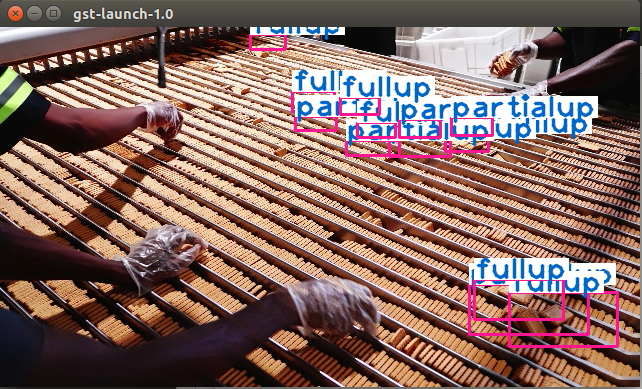
Then you will see the pop-up display window of this showcase as in the example below.
*Modified installation details can be found at the EVA Portal: < Under Construction >
¶ Training Materials
The training materials can be downloaded with the following links.
Training images: http://sftp.adlinktech.com/image/EVA/EVA_Show-Case/training/showcase3/cookie-training-images.zip
Training notation for ONNX: http://sftp.adlinktech.com/image/EVA/EVA_Show-Case/training/showcase3/cookie-training-notation.zip
Training architecture site list below:
Azure Custom Vision:
Sample scripts for exported models from Custom Vision
https://github.com/Azure-Samples/customvision-export-samples
Sample script for CustomVision's ONNX Object Detection model
*Sign up the Azure Service can be found at this page
https://azurelessons.com/create-azure-free-account/#Create_Azure_Free_Account
*Creat new project in Custom Vision can be found at the EVA Portal: < Under Construction >
¶ Run This Showcase Through EVA IDE(For EVASDK 3.5.2 or later)
In this showcase, you can run the pipeline by execute run.sh but also EVA IDE. Open EVA IDE and make sure your current path is in src/demo/cookie-inspection as root:
EVA_ROOT/bin/EVA_IDEEVA_ROOT is the path where the EVA is installed, the default installed path is /opt/adlink/eva/. So directly call EVA_IDE:
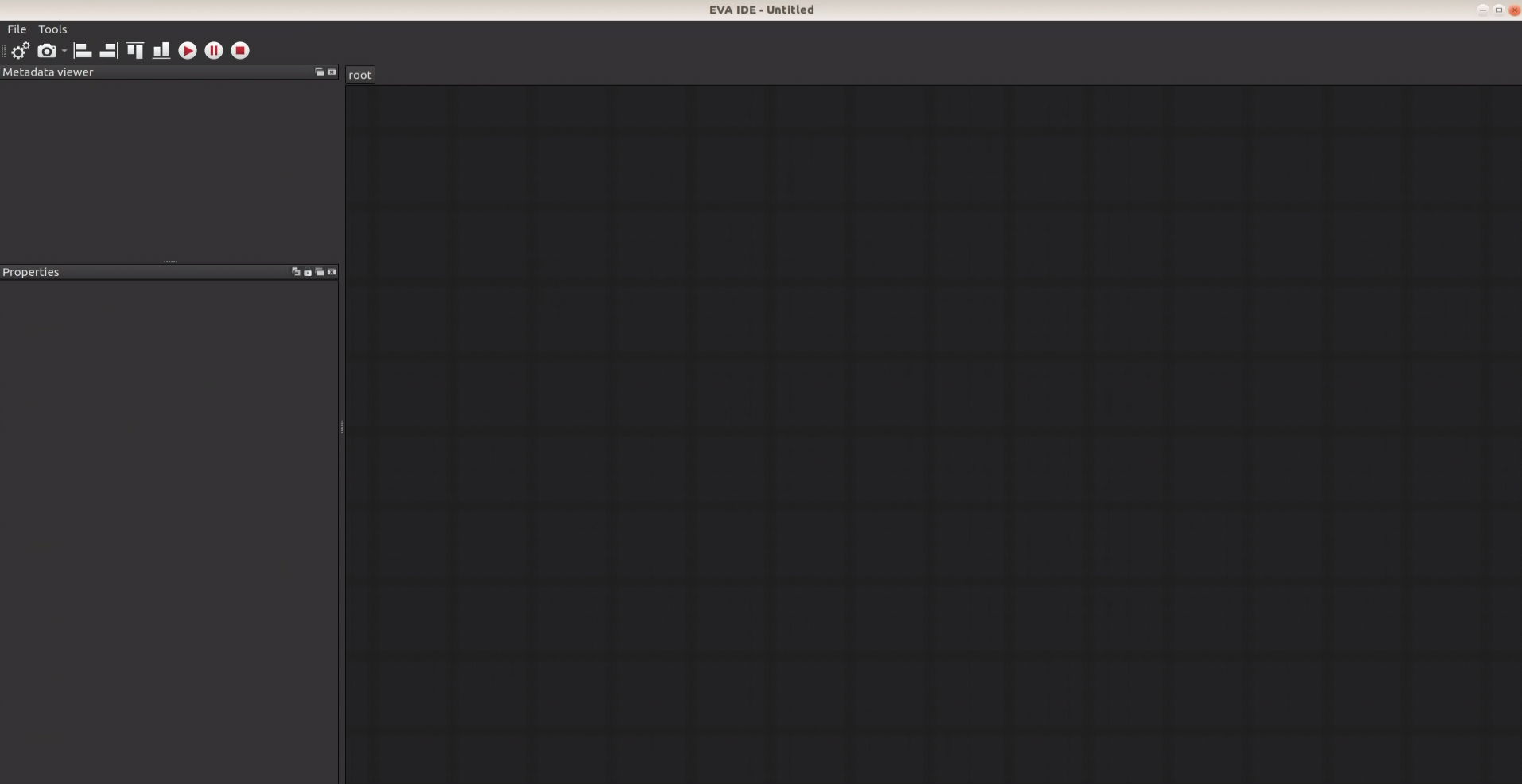
/opt/adlink/eva/bin/EVA_IDEAnd you will see the IDE show up as below:
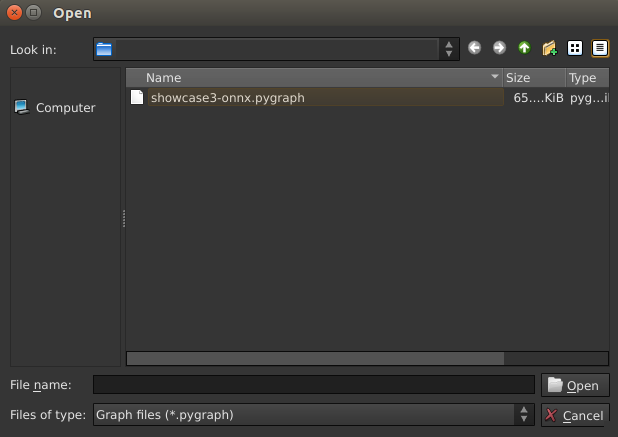
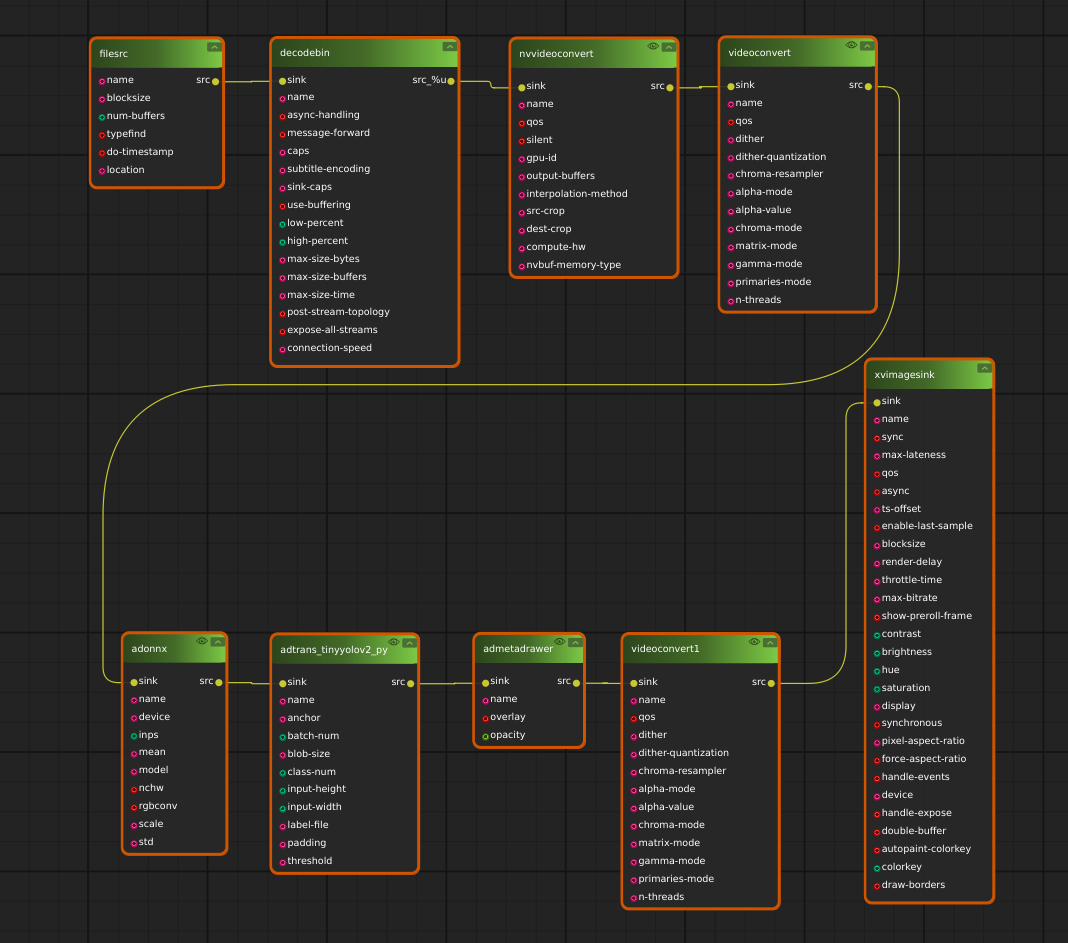
Then select the pygraph you want to run, here for example select showcase3-onnx.pygraph in this showcase folder through File->Load. Then you can see this showcase pipeline:
Then press the play button  and you will see the scenario video start to play.