¶ What can you learn from this sample code?
Through this sample code, you can learn in C/C++:
- How to get stream data(or so called image data) from stream.
- Where to add your own algorithm/post-processing in the C/C++ element.
¶ Essential knowledg
- Plugin sample code, "video filtr", in C/C++.
- The difference between application code and plugin/element code.
- Basic C/C++ programming.
¶ About this sample code
This sample shows how to get the stream data (or so called image data) for further processing from element.
¶ Description
In adgetstreamdata.cpp, you can find the implemented virtual method, ad_get_stream_data_transform_frame_ip, where the main stream data is processed.
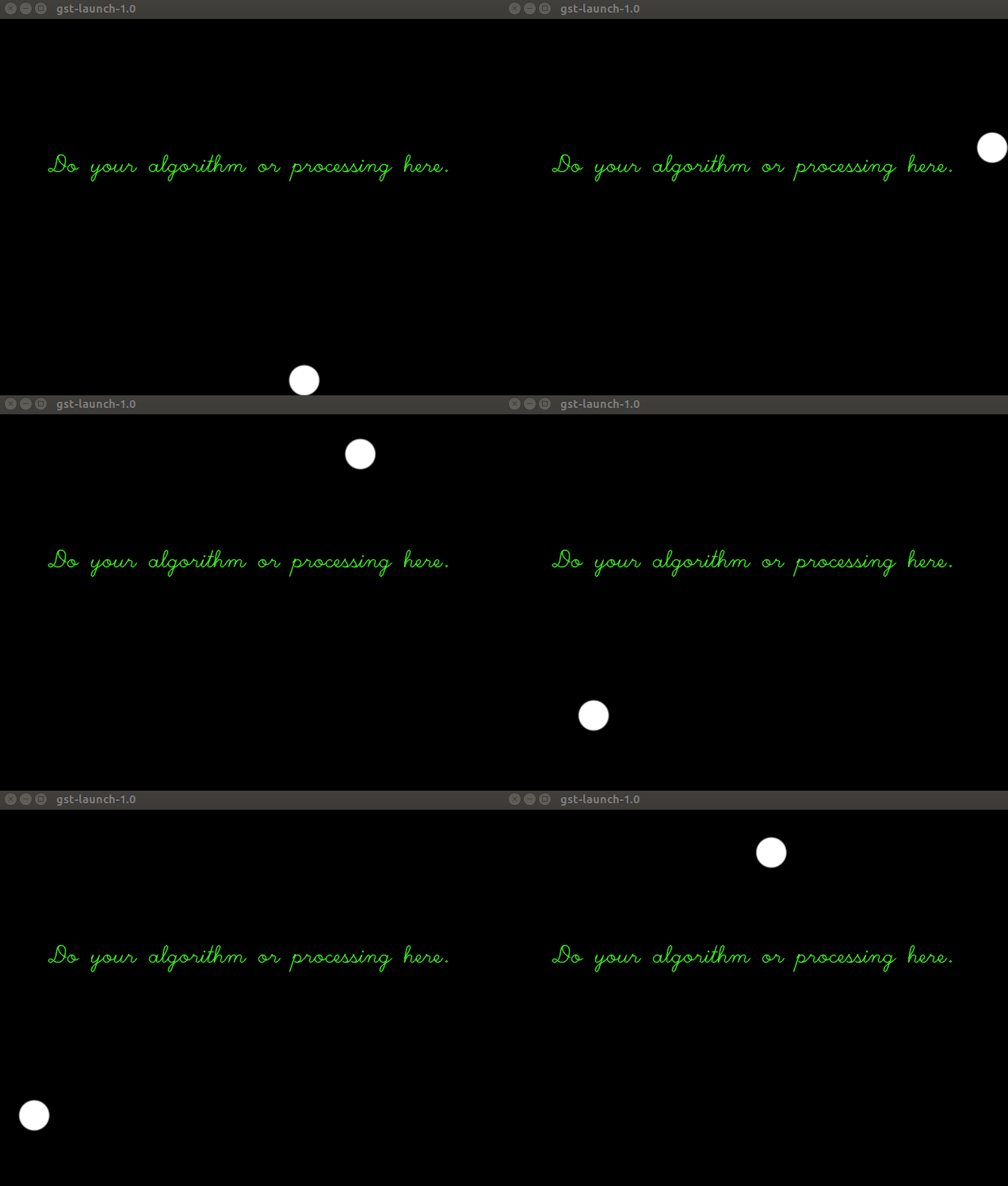
First, ad_get_stream_data_initialize_images is the function called in ad_get_stream_data_transform_frame_ip everytime when image buffer is used for next processing. Second, do the processing you want. In this sample, we simply assume the processing is just put text overlay on the image. Replace this text overlay by the whole process you are going to do here. Finally, replace the original stream data by the processed result.
¶ Run this sample code
Copy the built plugin libadgetstreamdata.so file to the plugin folder EVA installed, here used EVA_ROOT to preset the installed path of EVASDK. Then run the GStreamer tool to inspect it to see the metadata and the object information.
$ gst-inspect-1.0 adgetstreamdata
and you will see all of the information listed:
Factory Details:
  Rank                     none (0)
  Long-name                Get stream data element example
  Klass                    Video/Filter
  Description              Example of get stream data with OpenCV operations
  Author                   Dr. Paul Lin <paul.lin@adlinktech.com>

Plugin Details:
  Name                     adgetstreamdata
  Description              ADLINK get stream data plugin
  Filename                 /opt/adlink/eva/plugins/libadgetstreamdata.so
  Version                  1.0
  License                  LGPL
  Source module            SAMPLE
  Binary package           Sample Package
  Origin URL               https://www.adlink.com
Then you can run the pipeline command for testing:
$ gst-launch-1.0 videotestsrc pattern=18 ! video/x-raw, width=640, height=480 ! videoconvert ! adgetstreamdata ! videoconvert ! ximagesink
Use videotestsrc to simulate the image stream provider and set its psttern as moving ball. Then adjusting the image size to 640x480. And you will see the processed stream displayed: